
What is AI Tracker used for?
AI Tracker is a tool by Rush Analytics designed to monitor brand mentions in responses generated by AI systems such as OpenAI ChatGPT, Google Gemini, Yandex Alice, and Perplexity AI.
The tool helps you analyze:
- How often your brand appears in AI-generated answers
- Which sources AI systems use when generating responses
- How your brand visibility changes over time
As users increasingly ask questions directly to AI systems instead of using traditional search engines, they receive ready-made recommendations and often make decisions without visiting websites.
If your brand is not mentioned in AI responses, your company may lose part of its potential demand and customers.
AI Tracker allows you to:
- Monitor your brand’s presence in AI-generated answers and determine whether your company appears for key queries
- Evaluate brand visibility in a new demand-generation channel formed directly within AI interfaces
- Analyze visibility across different AI platforms and compare results
- Identify growth opportunities and areas to strengthen your presence
- Determine which sources AI systems reference when generating responses and work with them to influence outcomes
- Assess brand sentiment (positive, neutral, negative) in AI responses
- Make data-driven decisions regarding content development and digital strategy
The tool complements traditional SEO analytics and helps adapt your promotion strategy to evolving user behavior.
Strategic Value for Business
AI Tracker automatically checks how AI systems respond to keywords related to your niche.
You receive a complete overview:
- In which responses your brand is mentioned
- In what context
- How often compared to competitors
There is no need to manually check dozens of queries in ChatGPT, Google AI Overviews, or Yandex Alice – the system does it for you.
You will learn:
- Which brands AI systems recommend instead of yours
- How frequently competitors are mentioned
- How visibility changes over time
- Which queries trigger competitor mentions
This enables you to adjust your AI search strategy effectively.
You can also monitor how AI characterizes your brand and respond promptly to negative mentions, maintaining real-time reputation control.
Historical data is available — full visibility change history throughout the monitoring period. Compare different timeframes, identify seasonality, and measure the impact of marketing activities. Build visibility and share-of-mentions charts over time.
Step-by-Step Guide to Using the Tool
1. Create a Task
Task Name (required field)
You can enter any name. It is often convenient to use your website or brand name for easy identification later.
2. General Settings Block
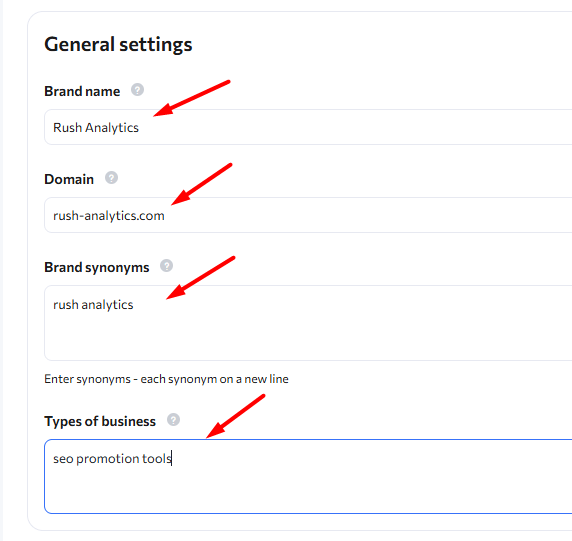
Brand Name (required field)
Enter the primary brand name (or keyword) you want to analyze.
Domain (recommended field)
Enter the domain you want to track.
Brand Synonyms (recommended field)
Enter synonyms or alternative spellings of your brand — each on a new line.
Example: a brand name in another language.
Types of business (recommended field)
Enter your brand’s or website’s areas of activity — each on a new line.
Example: SEO promotion tools.
3. Competitors Block
Your Competitors
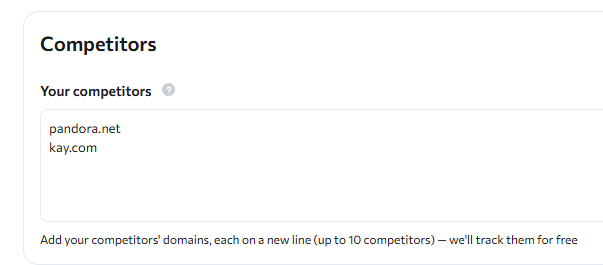
Enter competitor domains or brand names — each on a new line.
For one competitor, you may enter both the brand and the domain.
IMPORTANT:
You can add up to 10 competitors.
4. Select Region and Model
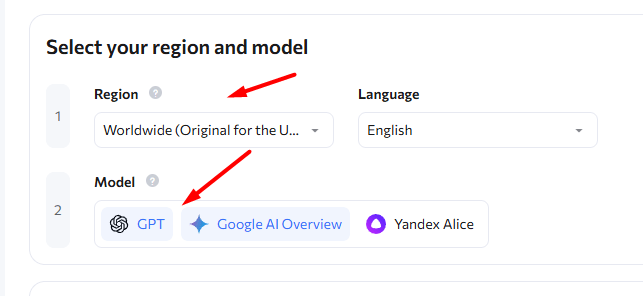
Specify the region for which you want to receive AI-generated responses.
Also select the AI model that should generate the response.
5. Frequency of collecting
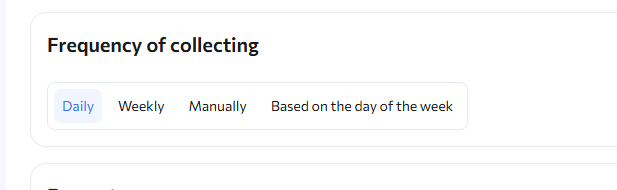
Available frequency options:
- Daily — positions are collected every day
- Weekly — positions are collected once per week (on the same weekday as task creation)
- Manual — positions are collected only when manually triggered
- Specific days of the week — positions are collected on selected days and times
The default setting is Daily, as we recommend regularly tracking visibility changes.
6. Prompts
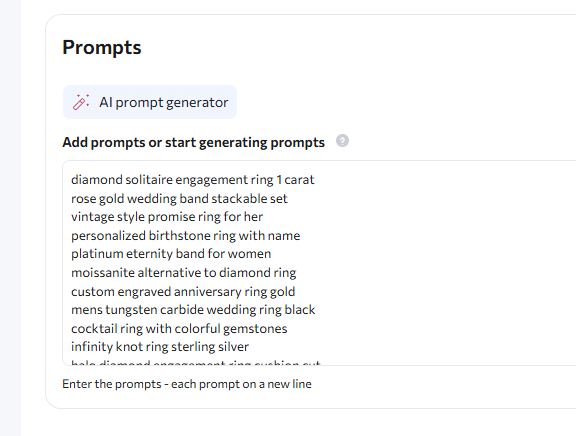
In this block, you can:
- Add prompts (keywords) manually — each on a new line
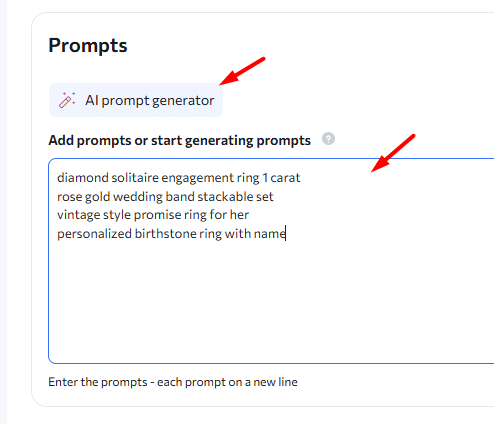
- Or generate prompts automatically using the AI Prompt Generator button
7. Launch the Task
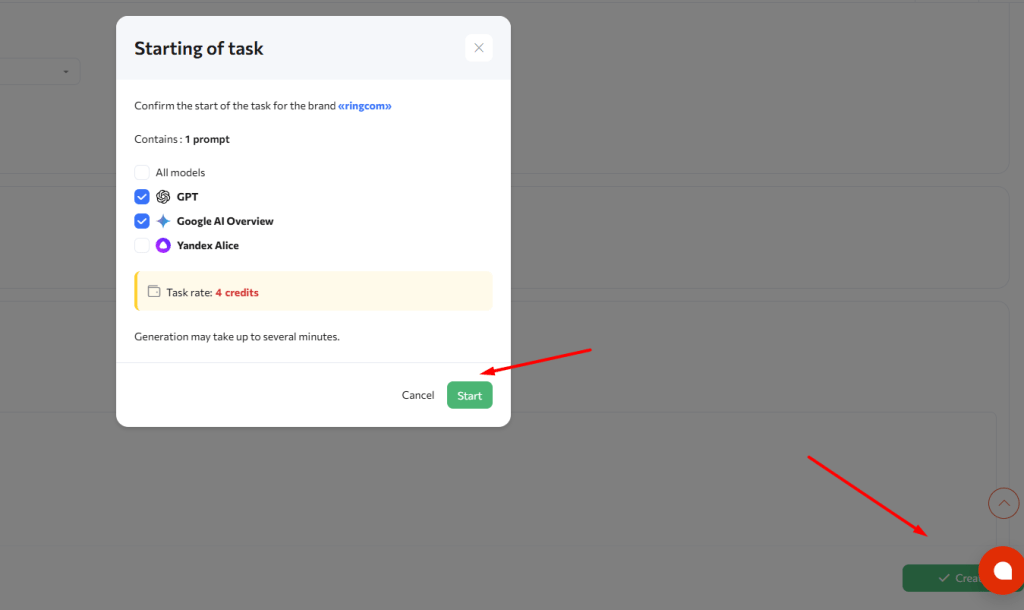
After filling in all required fields, the Create button becomes active.
Before launching, verify the task name and selected model settings in the pop-up window and click Start.
8. Task Statuses

In Rush Analytics AI Tracker, the following statuses are available:
- In Queue — data collection will start soon
- Collecting Data — task data is currently being gathered
- Updated (date) — task is completed; results are available in the web interface or for download in .XLSX or .CSV format
Web Interface Guide
1. “Brand” Tab
Brand Visibility Chart
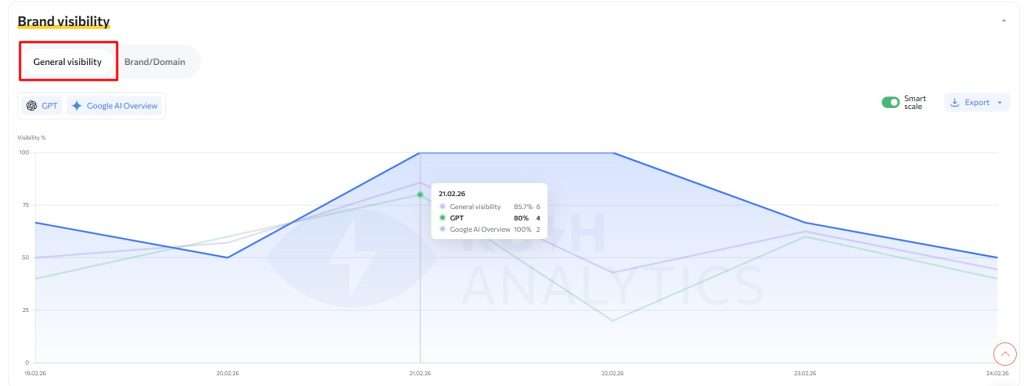
General Visibility:
Displays visibility dynamics by model over the selected period and total visibility.
It shows how often a brand is mentioned in responses generated by AI models.
Calculation Formula
Overall brand visibility = Number of responses that mention the brand ÷ Total number of responses received.
Why the calculation is based on responses rather than prompts.
AI models do not always generate responses to every prompt. Therefore, the metric is calculated based on the actual responses received, not on the formula “number of prompts × number of AI models.”
Calculation by individual AI models
For each model, the metric is calculated using the same formula — again based on the number of responses received, not the number of requests.
What is included in the calculation
Visibility is determined based on the data specified in your settings:
- Brand — the primary name
- Brand synonyms — alternative names
- Domain — website address
2. Visibility Chart: Brand / Domain
Shows visibility trends for your brand and domain – how often the brand and domain appear in AI-generated responses.
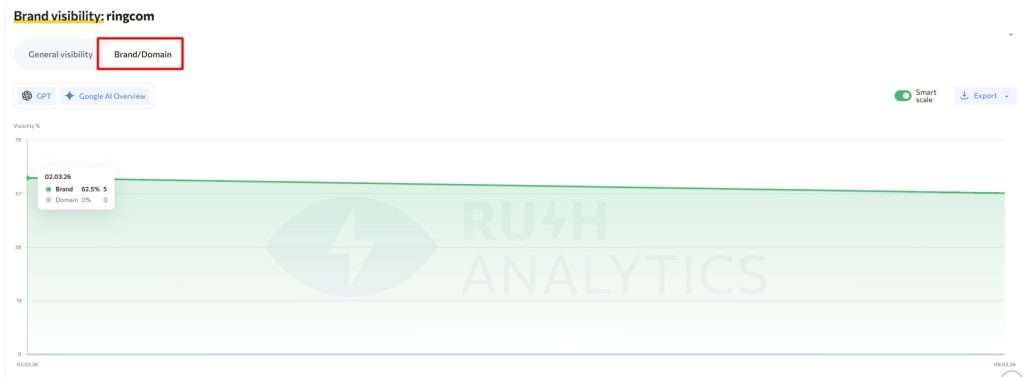
What the values on the chart mean
- Brand — the number of AI responses that mention the brand
- Domain — the number of AI responses that mention the domain
The same responses may be counted in both metrics if the AI mentions both the brand and the domain in a single response.
AI Responses Table
- Visibility — from 0% to 100%, indicating how often your brand appears in AI responses. The higher, the better.
- Model — selected AI platforms being analyzed.
- Sentiment — positive, neutral, or negative sentiment of mentions.
- Mentions — whether your brand was mentioned for the given prompt.
- Response — number of AI-generated answers received for the prompt.
You can view detailed information for each prompt.
Both charts and tables can be downloaded in XLSX, CSV/PNG, or PDF formats.
2. “Sources” Tab
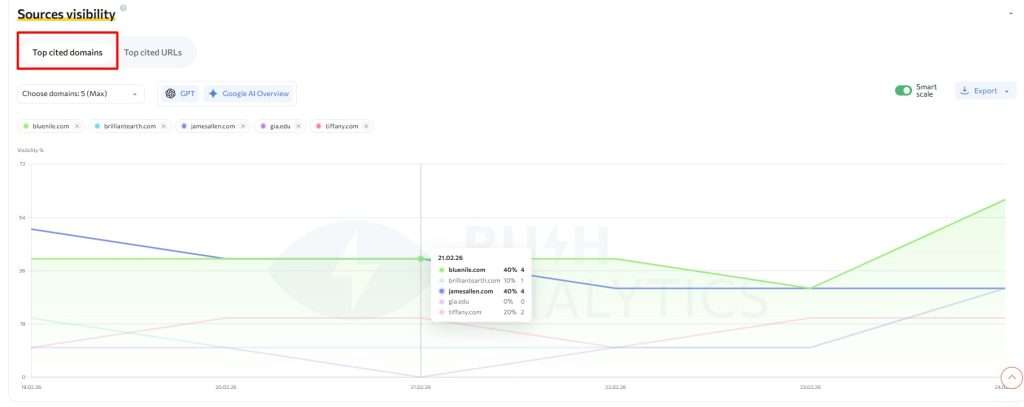
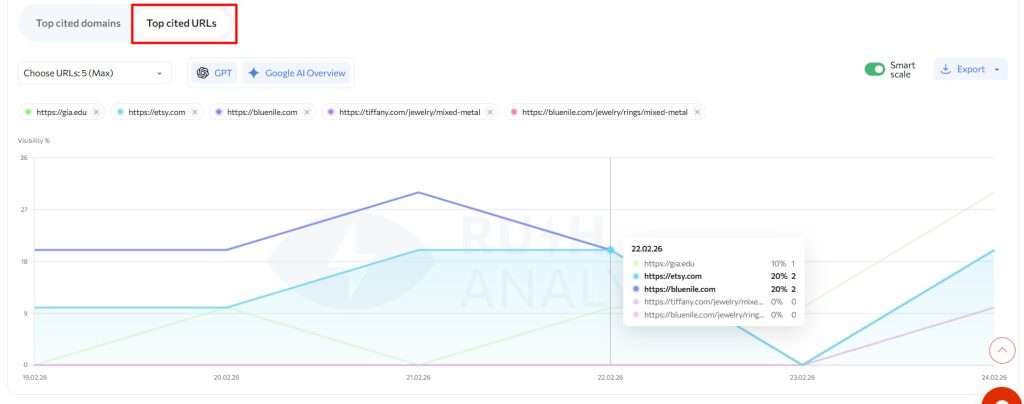
Sources visibility graph
Most frequently cited websites in AI responses.
- Top cited domains
- Top cited URLs
Sources tables
Websites referenced by AI models when generating responses.
Domains
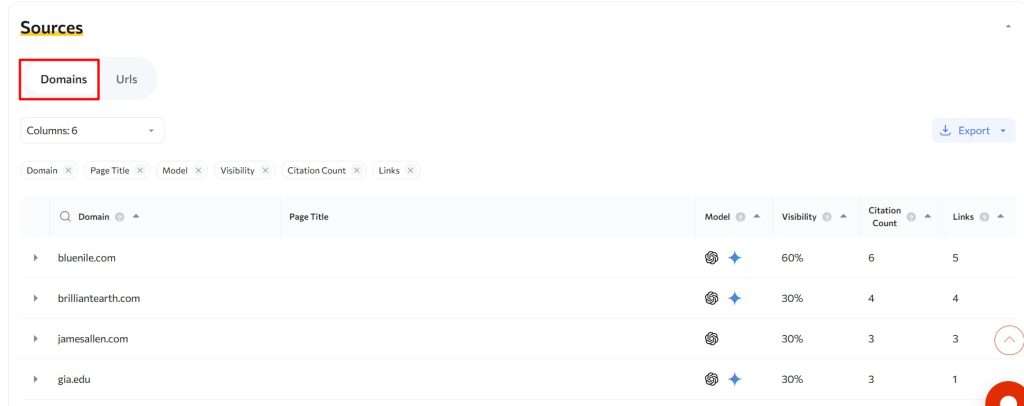
- Domain — frequently referenced domains (details available).
- Model — which AI system referenced the domain.
- Visibility — overall brand visibility.
- Citation count — number of times a competitor appeared in all responses.
- Links — number of unique links found in responses.
Reports can be downloaded in XLSX or CSV format.
URLs
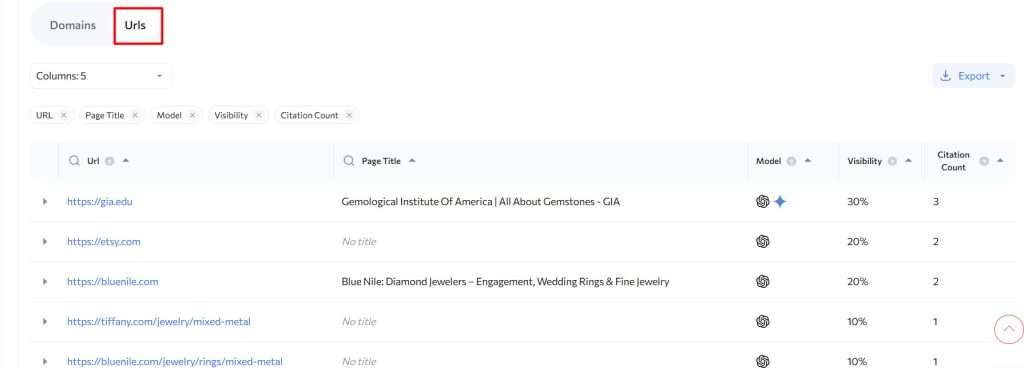
- Page — pages most frequently used as sources.
- Model — AI system where mentions were found.
- Visibility — percentage of responses referencing the domain across all tracked prompts and models.
- Citation count — number of times a competitor appeared.
- Links — number of unique links.
Detailed domain view shows all prompts containing links to the specified URL.
Comparing target vs. actual URLs helps determine whether key business pages are being referenced and identify traffic losses, SEO issues, and growth opportunities.
3. “Competitors” Tab
Brand Visibility Chart (Competitors)
Shows the percentage of AI responses containing competitor brands or domains.
Domain Visibility
Displays visibility dynamics by model and total visibility.
Competitor Visibility Table
Brand Visibility:
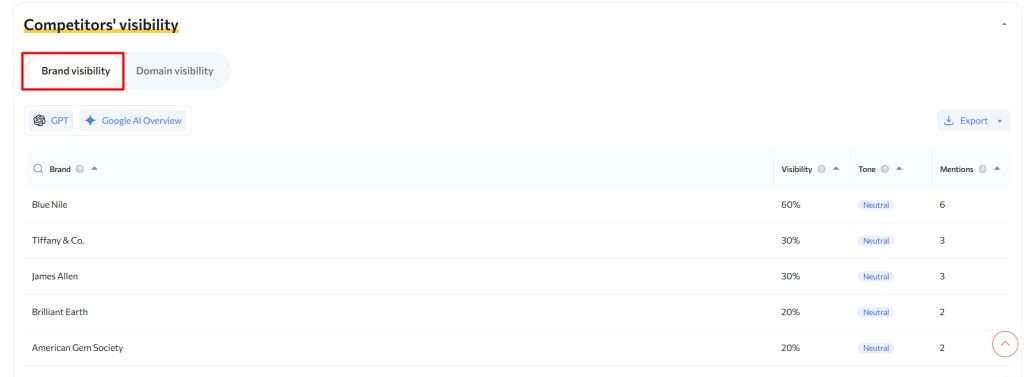
- Brand — brands referenced in AI responses
- Visibility — average visibility across all AI responses (latest data collection date within selected period)
- Sentiment — positive, neutral, or negative sentiment of mentions
- Mentions — total mentions across responses
Domain Visibility:
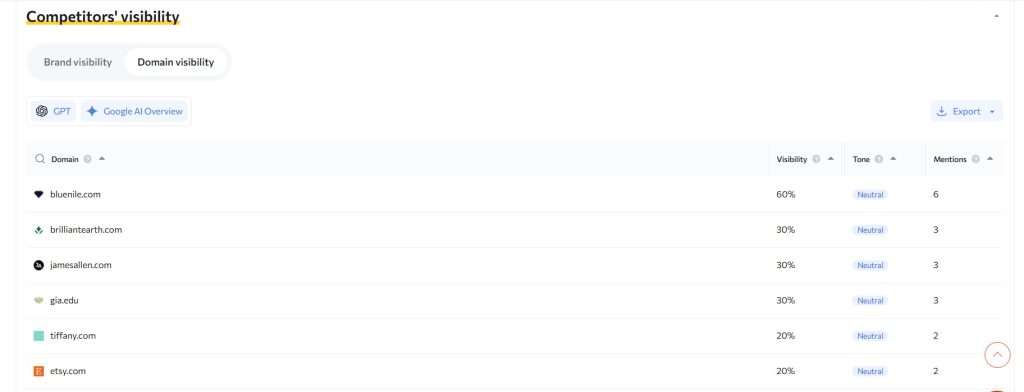
- Domain — domains referenced in AI responses
- Visibility — average domain visibility
- Sentiment — positive, neutral, or negative sentiment of mentions
- Mentions — total domain mentions
4. “Sentiment” Tab
Sentiment Chart
Displays sentiment distribution of AI responses.
The line shows the percentage of a specific sentiment type among all responses.
AI Responses Table
- Prompt — tracked query
- AI System — platform where mentions were found
- Sentiment— sentiment of the response (positive, neutral, negative)
- Sentyment Dynamics — how response sentiment changes over time
Tables and charts are available for download in XLSX, CSV/PNG, or PDF formats.
Editing a Task
You can access task editing from the task list or from any tab within the task interface.
You can modify settings and save them to update the task later.
After saving changes, you must manually refresh the task for new data to be collected according to updated settings.
Terminology
Prompt
A text query entered into an AI system to receive an answer.
Examples:
“Best CRM for small businesses”
“How to choose an SEO contractor”
In AI Tracker, a prompt is a tracked query analyzed for:
- Brand mentions
- Sentiment
- Sources used
- Visibility across AI platforms
AI System
An AI-based system that processes user prompts and generates text responses using trained language models.
Examples:
- OpenAI (ChatGPT)
- Google (Gemini)
- Yandex (Alice)
- Perplexity AI
In AI Tracker, the AI system is the source where brand presence is analyzed.
Sentiment
The sentiment of brand mention in AI responses:
- Positive — recommended or described favorably
- Neutral — mentioned without strong evaluation
- Negative — described critically or with drawbacks
Sentiment analysis evaluates not only brand presence but also the quality of representation in AI responses.
Model
A specific version of an AI language system that generates responses within a platform.
One platform may use multiple models that differ in:
- Data processing algorithms
- Generation quality
- Information sources
- Response logic
In AI Tracker, analysis can be conducted at the model level, as results for the same prompt may differ depending on the AI model used.
Is this article helpful?
 1
1
 0
0